
SentiSum connects directly with Intercom via OAuth to securely access your conversation data, users, companies, tags, and tickets for automated tagging and insights.
Please Follow these steps to connect your Intercom account with SentiSum.
⚠️ Important: Admin Permissions Required
To integrate Intercom with SentiSum, you must have Admin permissions on your Intercom account. If you don’t have the required access, please ask your Intercom administrator to complete the integration.
Step 1: Navigate to the Integrations Page
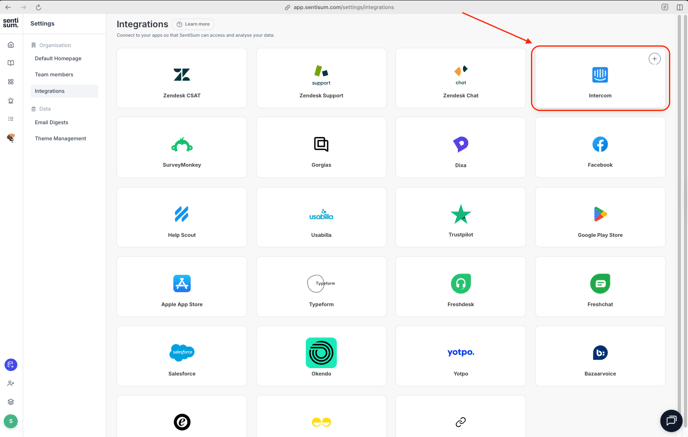
- Go to SentiSum Integrations.
- Locate the Intercom integration card.
- Click on the "+" (Add Integration) button.
- Reference Screenshot :
Step 2: Log in to Intercom
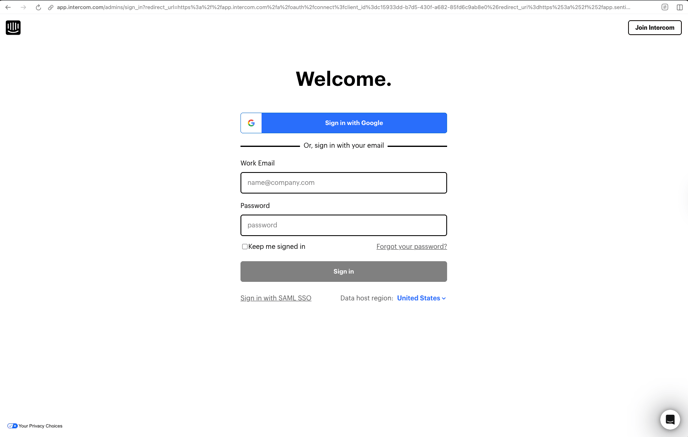
- You will be redirected to the Intercom login page.
- Log in using either:
- Google Sign-In, or
- Your Intercom work email and password
- Reference Screenshot:
Step 3: Grant SentiSum Access Permissions
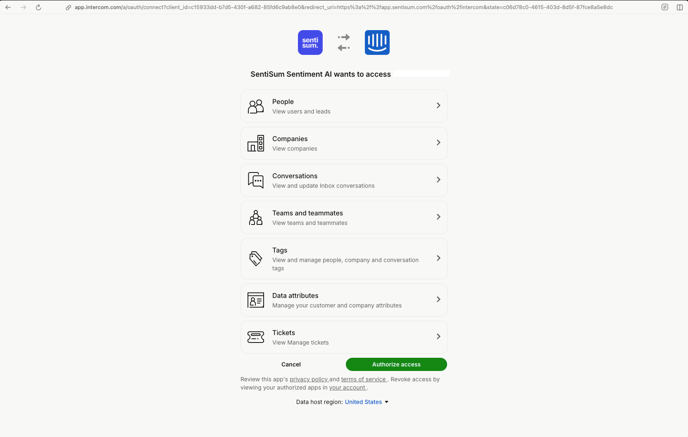
- You will now see a page titled:
“SentiSum Sentiment AI wants to access Intercom” - Review the list of permissions SentiSum requires, including:
- People (users & leads)
- Companies
- Conversations
- Teams & teammates
- Tags
- Data attributes
- Tickets
*These permissions must be enabled for SentiSum to ingest & analyse your data correctly. - Click "Authorize" to grant access.
- Reference Screenshot:
Step 4: Data Processing Begins
Once authorization is successful, SentiSum will display a confirmation message:
“Your data is now being processed!”
SentiSum team will notify you once the integration is complete.
Reference Screenshot: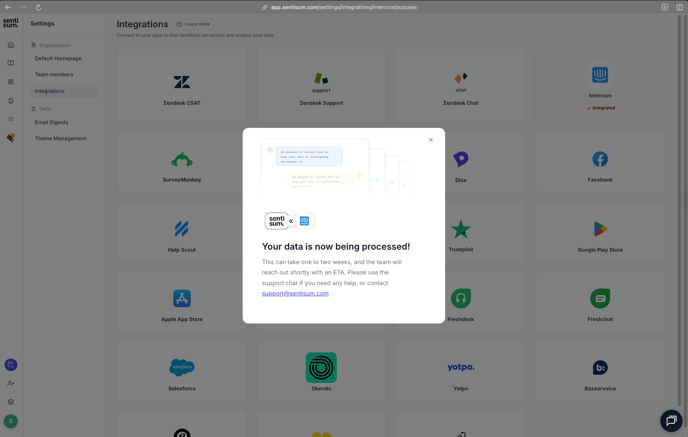
💬 Need Help?
If you need support at any point:
Use the in-app support chat, orEmail us at support@sentisum.com